Local coordinates

On the Model tab, in the Manage group, the Local coordinates menu includes the following tools.
Before using these tools, the project administrator must define the required local coordinate systems, as described in Coordinate Systems.
Change coordinate system
You can move model objects into a different coordinate system.
Note: You cannot move Cable Network Parts to a local coordinate system. The nodes and segments of the cable routing network must always be in the project coordinate system.
Important: Use the Change coordinate system tool only when necessary. Moving objects from one coordinate system to another always carries a risk of causing numerical inaccuracies in the data.
Prerequisites
-
You have checked out the objects to move to a different coordinate system. The operation needs to be able to modify the objects in COS.
Do the following:
-
Select Model tab > Manage group > Local coordinates > Change coordinate system.
-
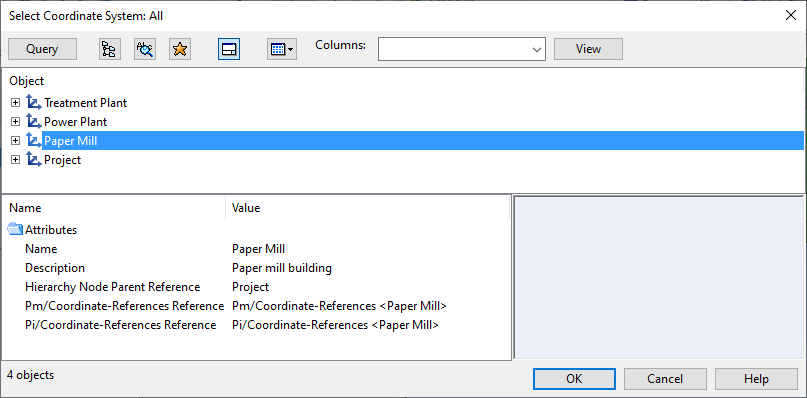
In the Select Coordinate System dialog, select the target coordinate system, and click OK.
-
Select the objects to move to that coordinate system from the model, and press Enter.
The moved objects are removed from the local model, and the Action Center prompts all users to load updates from COS.

Color by local coordinates
You can display objects in work views in different colors according to their coordinate system. Color legend:
|
Objects that use the currently active coordinate system: |
Green |
|
Objects that use some other coordinate system: |
Blue |
Do the following:
-
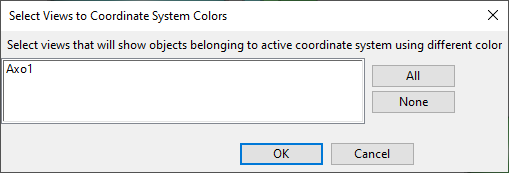
Select Model tab > Manage group > Local coordinates > Color by local coordinates.
-
In the Select Views to Coordinate System Colors dialog, select which views should use color to indicate the coordinate system of the model objects, and click OK.